Find your way around the app
A tour of the RoboLedger app, page by page. Where to see your ledger, statements, the close, reports, plans and the concepts your accounts map to.
Most of the work in RoboLedger happens in a conversation with your AI assistant: Claude, ChatGPT or any MCP client. The app at roboledger.ai is where you connect your books, see what your assistant is working from, and review what it did. Your books, reports and plans are all here, and graph admins can see every change made to the graph on the Activity page at robosystems.ai.
The screens below show Cadence Labs, a made-up company used for demos.
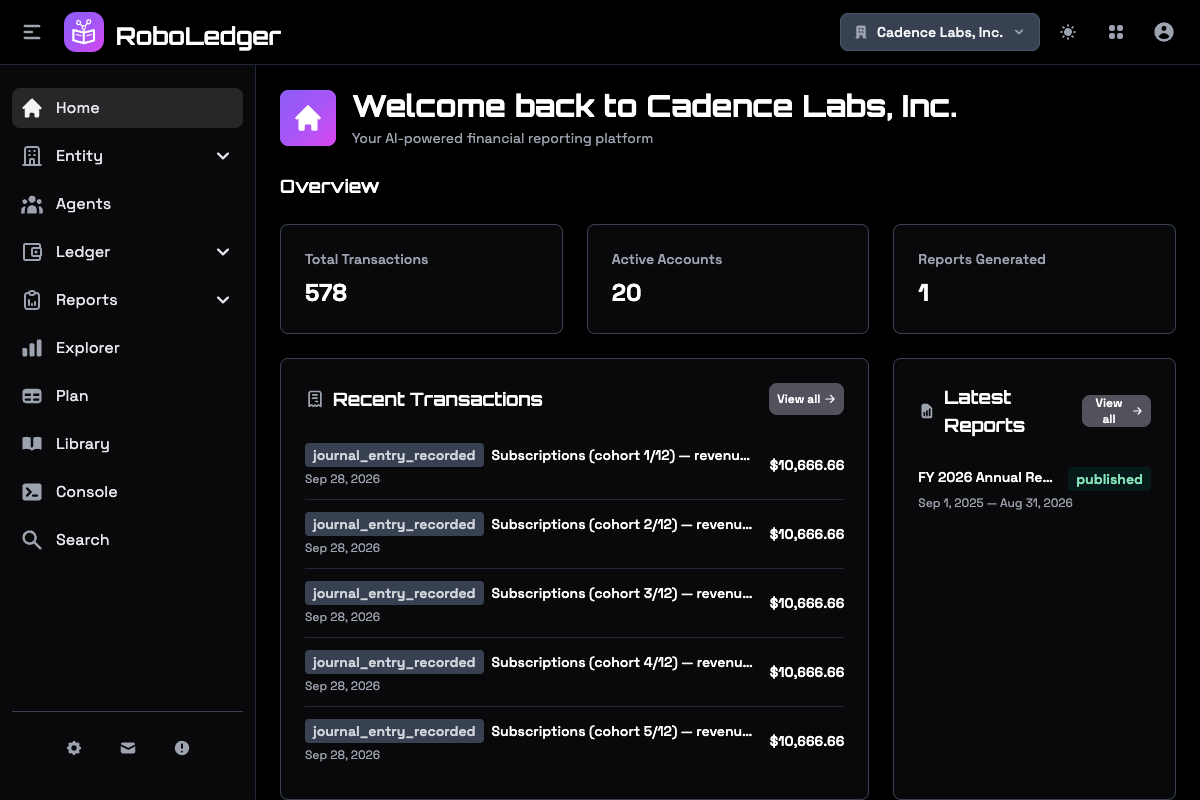
The menu at the top right picks the company you're looking at: every company in every graph you can reach, grouped by graph and searchable by name or ticker. Pick a subsidiary and every page shows its books. Home shows recent transactions, your latest reports and shortcuts.
Entity
- Entity Info holds the selected company's details and, for a subsidiary, names its parent and the share held.
- All Entities is the graph's reporting group: each company, the share the parent holds and the month it's closed through, with New Entity to add one. See Work across several companies.
- Connections is where you connect QuickBooks or a bank feed, press Sync Now, choose sync options, and disconnect. See Connect your books to your AI assistant.
Agents
The people and companies you do business with: customers, vendors and employees. They come over from QuickBooks, or from a bank feed as its counterparties appear, and each one opens to its details and activity. One the bank feed pays or is paid by also keeps a Default account, learned from the lines you approve, with how often it held, and Always ask for a counterparty whose lines go to different accounts. See Lines from a bank feed.
Ledger
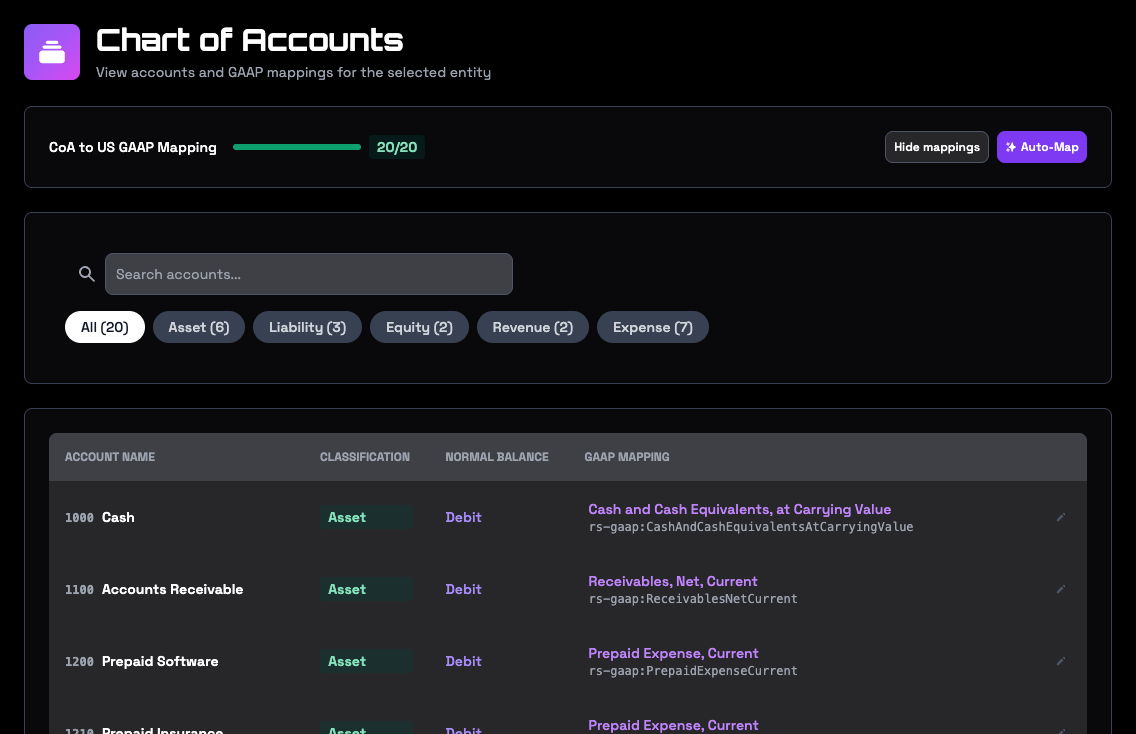
Chart of Accounts lists your accounts. Show mappings adds the reporting concept each account is mapped to, and the bar at the top shows how much of the chart is covered. See Map your chart of accounts.
Bank Accounts lists the bank and card accounts a feed keeps, each with its source, status, last sync, the company it belongs to and the chart account it books to. Move books it to a different account, or to another company's chart, and takes the lines still in the Inbox with it; posted entries stay where they are.
Inbox holds events that have been captured and haven't posted to the ledger yet, so you can review and approve them first. See Review events in the Inbox.
Journal is every journal entry with its lines, in posting order, and a second tab for transactions. You can create a manual entry here, and each row offers what its entry allows:
- A draft you entered by hand can be edited or deleted. It stays a draft until the month closes.
- A posted entry can be reversed. The reversal posts on the date you choose with every debit and credit swapped, and the original is marked reversed. An entry is reversed once.
An entry in a closed month can't be changed until the month is reopened. While QuickBooks is connected, an entry synced from it is corrected in QuickBooks. While QuickBooks is also your book of record, which is the default, every posted entry is: a reversal posted in RoboLedger alone would leave the two ledgers disagreeing. See Nothing writes to QuickBooks until you post.
Trial Balance shows each account's debits and credits, and whether they agree.
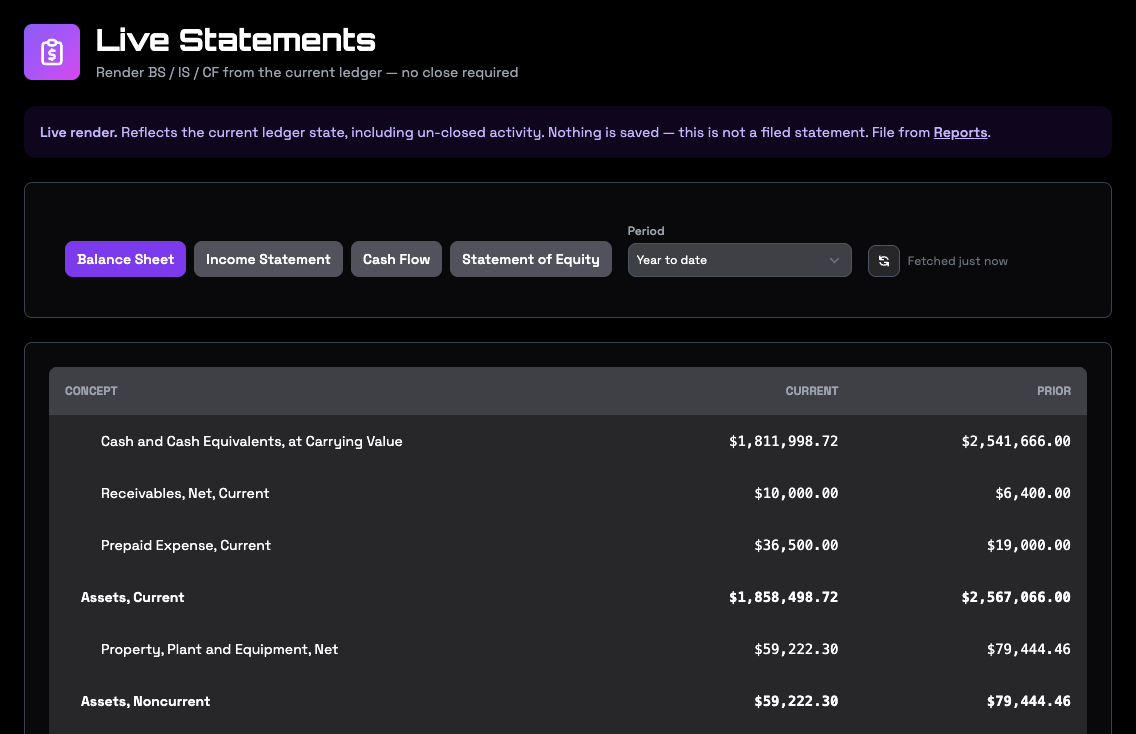
Statements shows the balance sheet, income statement, cash flow and statement of equity straight from the current ledger, for any period. On a group parent, a Scope control switches between the company's own statement, the combined one across the group, the consolidated one, and a worksheet with each company in its own column. Nothing is saved, and no close is needed.
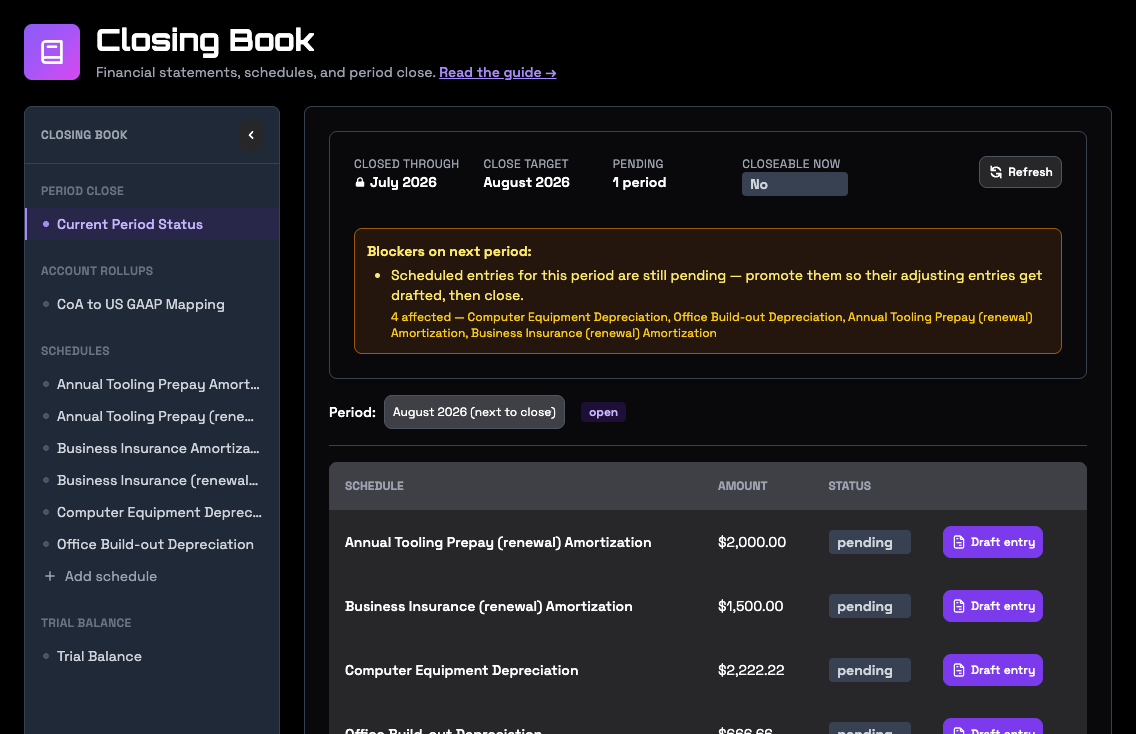
Closing Book is where the month-end close lives. The period close view shows the last closed month, the month you're working towards, what's blocking it, and each schedule's entry for the month. Beside it are the statements from your latest report, your account rollups, your schedules, your reconciliations with the transactions that changed in QuickBooks after a sync, and the trial balance. See Close the month with your AI assistant, Schedules for recurring entries, Reconcile your accounts and When QuickBooks changes after a sync.
Reports
- View Reports lists the reports you've created. Open one to read its statements and notes, download it, share it, regenerate it, or file it once it's final.
- Create Report builds a report for a period: this month or last, this quarter or last, monthly year to date, a full year by month, year over year, or dates you choose.
- Publish Lists are the sets of graphs you send reports to.
- Blocked Senders are graphs you don't accept reports from.
See Reports and sharing.
Explorer
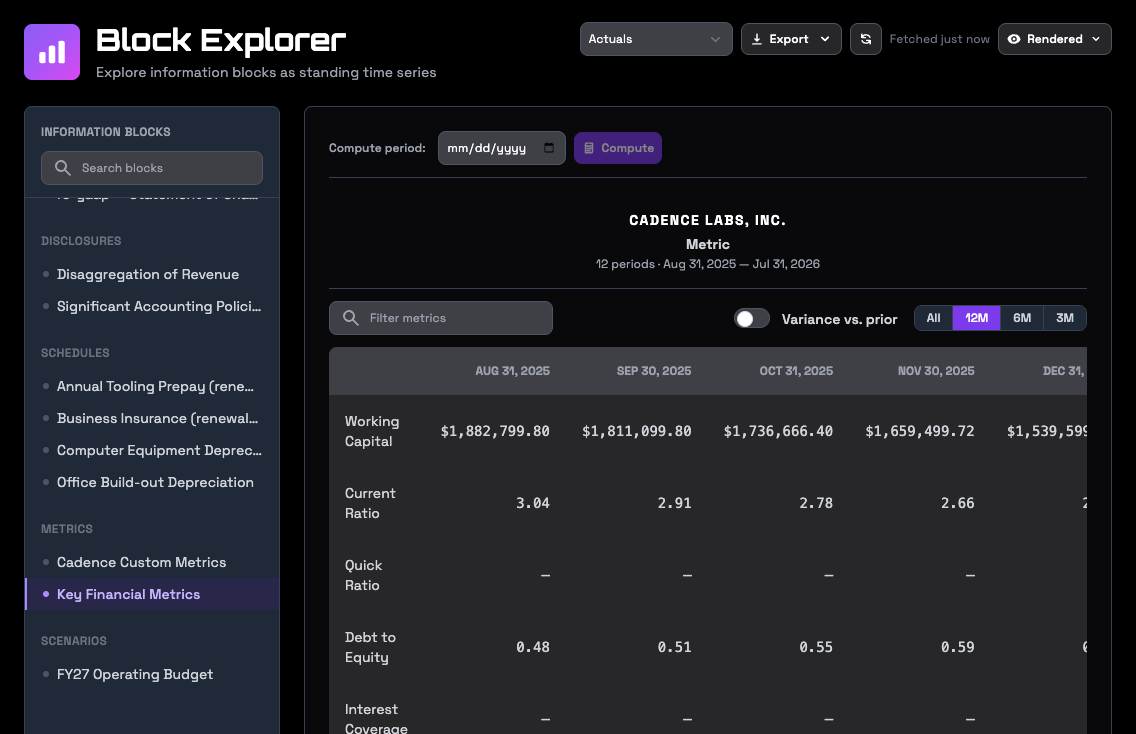
Explorer opens any statement, note, schedule, set of ratios or scenario as a series over time. Switch between the rendered table, a chart, the facts behind it, the accounts and concepts it's built from, the checks it passed and the rules behind them. Export its table as CSV or JSON. See Explore statements and metrics over time.
Plan
Your statements and a scenario's assumptions in one monthly grid, with actual months on the left and forecast months on the right. See Plan and forecast with your AI assistant.
Library
The reporting concepts your accounts map to, with their definitions and how they roll up into each statement. Look here when you're deciding where an account belongs. See The reporting library.
Console
Ask questions about your books inside the app, from the Console bar at the bottom of every page. Start a request with /do to have it make a change: add a metric block or run a forecast, add or update a customer or vendor, remember something, draft a report, draft the schedule entries that are due, or sort bank-feed lines in the Inbox into accounts. It lists what it changed, and Plan and Explorer refresh to show it. A line it sorts posts only when someone commits it. Filing or sharing a report, closing a period, posting entries and deleting stay out of the Console. The Console runs on RoboLedger's own AI, so questions and changes use credits from your plan's monthly allowance. A change runs on a more capable model than a question, because a wrong change costs more than a wrong answer, so it usually uses more. Claude, ChatGPT and other clients you connect yourself don't use credits.
Search
Finds text across the documents in your graph, such as accounting policies and close procedures.
Your account
Your RoboSystems account at robosystems.ai holds the rest:
- your password, passkeys and API keys, under User Settings
- your organization's members, and its billing for owners and admins
- each graph's credits, on the Usage page
- each graph's Activity: every change made to it, who made it, and whether it came through an MCP client, the app or API, or the Console. Graph admins see it.
- the MCP page, with the address to connect any graph
The user menu at the top right takes you there.