Map your chart of accounts
Mapping ties each QuickBooks account to a standard reporting concept, so statements, reports and forecasts come out right. How to review and update it.
Your chart of accounts is yours: the names, the numbering, the accounts you added over the years. Mapping ties each of those accounts to a standard reporting concept drawn from US GAAP, like cash, accounts receivable or cost of revenue. It's how RoboLedger knows where an account belongs on the balance sheet, income statement, cash flow and statement of equity.
Everything built from statements depends on it: live statements, reports, the statements saved at each close, forecasts, and comparisons with public companies, which report in the same kind of concepts.
The first sync maps your accounts
When QuickBooks first syncs, RoboLedger maps your chart of accounts with AI. This is the one setup step that uses credits.
- Matches it's confident about are applied.
- Less certain matches are applied and flagged for you to review.
- Accounts it can't place are left unmapped.
This runs once. Accounts you add in QuickBooks later arrive unmapped, so check mapping whenever your chart of accounts changes.
If the graph keeps native books instead of QuickBooks, an empty Chart of Accounts page offers templates to start from, with their mappings already in place. Review them, and map any account you add later.
Review it
In the app. Open Ledger → Chart of Accounts and choose Show mappings. It shows your accounts, what each one is mapped to, and how much of the chart is covered. Change or clear a mapping on any account. Auto-Map runs the AI mapping again over what's left, and it uses credits. The reporting library is the vocabulary those mappings point at.
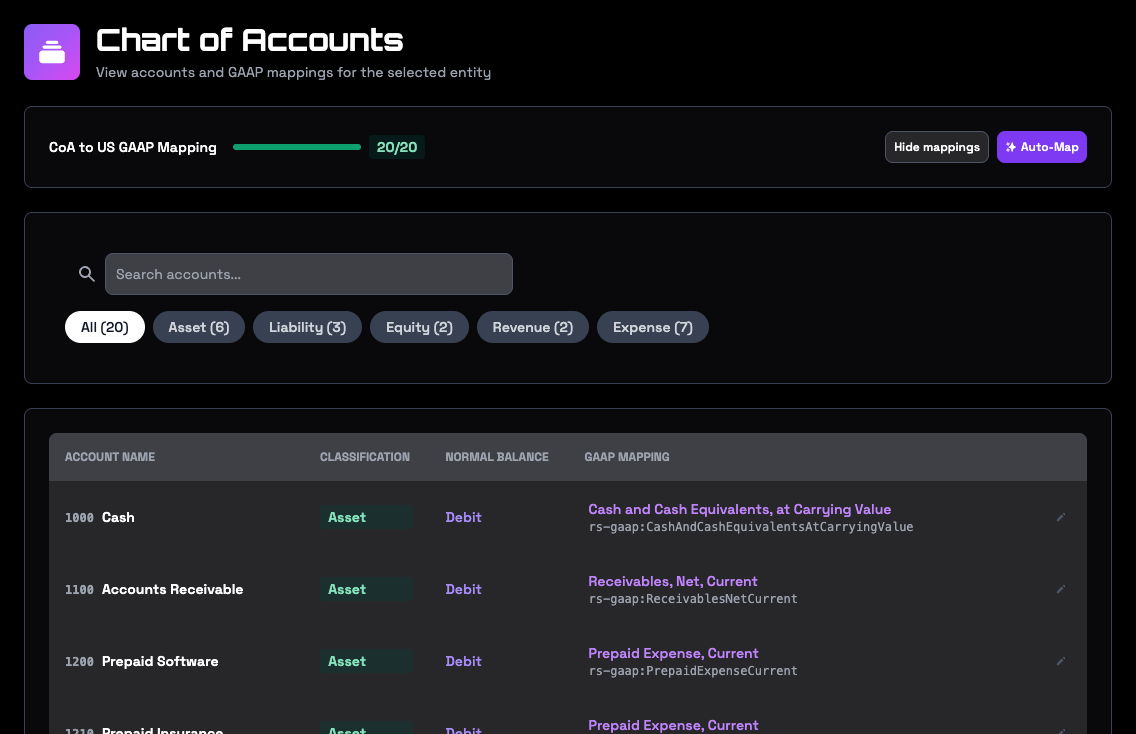
With your AI assistant. It can list the accounts that aren't mapped, suggest a concept for each one, and apply the ones you agree with. RoboLedger narrows the candidates to concepts that fit where the account sits on the statements, and your assistant picks among them. No AI runs inside RoboLedger for this, so suggestions use no credits.
Ask: "Which accounts aren't mapped yet? Suggest where each one belongs, and wait for me before applying anything."
What to look for
- Unmapped accounts with activity. Their balances are missing from your statements. An income statement that looks light, or a balance sheet that doesn't balance, usually starts here.
- Flagged matches. Check each one. A shareholder loan mapped as a bank loan still balances, and is still wrong.
- Catch-all concepts. An account mapped to an "other" concept shows up on the statement, but inside a line that tells you little. Give it a more specific concept if one fits.
- Contra accounts. Accumulated depreciation and allowances belong with the asset they reduce.
Map before you close
Closing a month saves that month's statements, and they're built through the mapping as it stood. After that, an account with activity in a closed month can't simply be unmapped or mapped anew, because the saved statements would stop agreeing with the live ones. The message names the earliest month affected.
So map first, close second. An account that was mapped to the wrong line can still be moved afterwards, as long as it stays on the same statement: a card that was booked as short-term debt can become other current liabilities, because no total the close recorded changes. That's a reclassification. The saved statements keep the answer as of the close, live statements and reports read through the new mapping, and the change is recorded with the months it reaches and your reason. Ask your assistant to move the account and say why, or change the mapping in the app. A move across statements, say from an expense to a liability, would change net income in those months, so it's refused: reopen the months it touches, change it, and close them again. See Close the month with your AI assistant.
Try asking
- "How much of our chart of accounts is mapped?"
- "Show me every account mapped to an 'other' concept and suggest something more specific."
- "We added three accounts in QuickBooks this month. Sync, then map them."
- "Why is the balance sheet out of balance? Check for unmapped accounts with balances."
Go deeper
- Chart of accounts mapping: how mappings are stored, suggested and guarded once a month is closed.
- The calc-DAG model: why accounts map only to detail lines, and how subtotals are derived.